> ## Documentation Index
> Fetch the complete documentation index at: https://docs.floto.ai/llms.txt
> Use this file to discover all available pages before exploring further.
# Design Diff
> Compare Figma designs to live implementations and catch visual bugs instantly
## Overview
Design Diff compares your Figma frames against your live site and shows every visual difference — spacing, colors, typography, sizing — overlaid on the page. Catch implementation bugs before users do.
**Time per diff**: \~1-3 minutes\
**Cost**: 25 credits per diff\
**Access**: Chrome Extension (required)\
**Frames**: 1 frame per diff
***
## How It Works
### Step 1: Install the Chrome Extension & Figma Plugin
Install both the Chrome extension and Figma plugin (takes a minute, one-time only).
**Chrome Extension:** [Install Design Diff by Floto](https://chromewebstore.google.com/detail/design-diff-by-floto/gnkckbifdpiibmmopohgdbjnfccghccc)
**Figma Plugin:** [Install Floto](https://www.figma.com/community/plugin/1517405046280643746)
***
## Two Ways to Use
After installing the extension, access Design Diff two ways:
### Via Plugin (Recommended)
Run diffs directly in Figma.
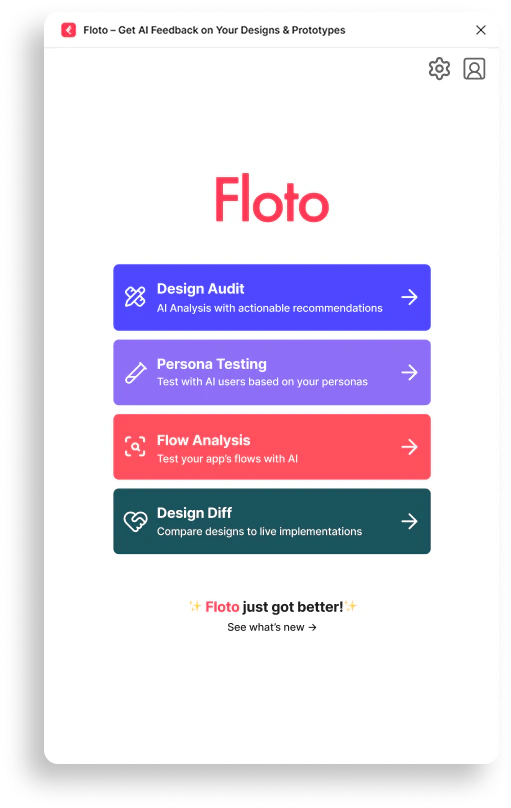 1. Open the Floto plugin in Figma
2. Click **Design Diff**
3. Select a frame
4. Enter implementation URL
5. Click **Run Diff**
6. Extension opens your live site and compares
Works with free Figma plans — no rate limiting concerns.
### Via Chrome Extension
Run diffs from your browser.
1. Open the Floto plugin in Figma
2. Click **Design Diff**
3. Select a frame
4. Enter implementation URL
5. Click **Run Diff**
6. Extension opens your live site and compares
Works with free Figma plans — no rate limiting concerns.
### Via Chrome Extension
Run diffs from your browser.
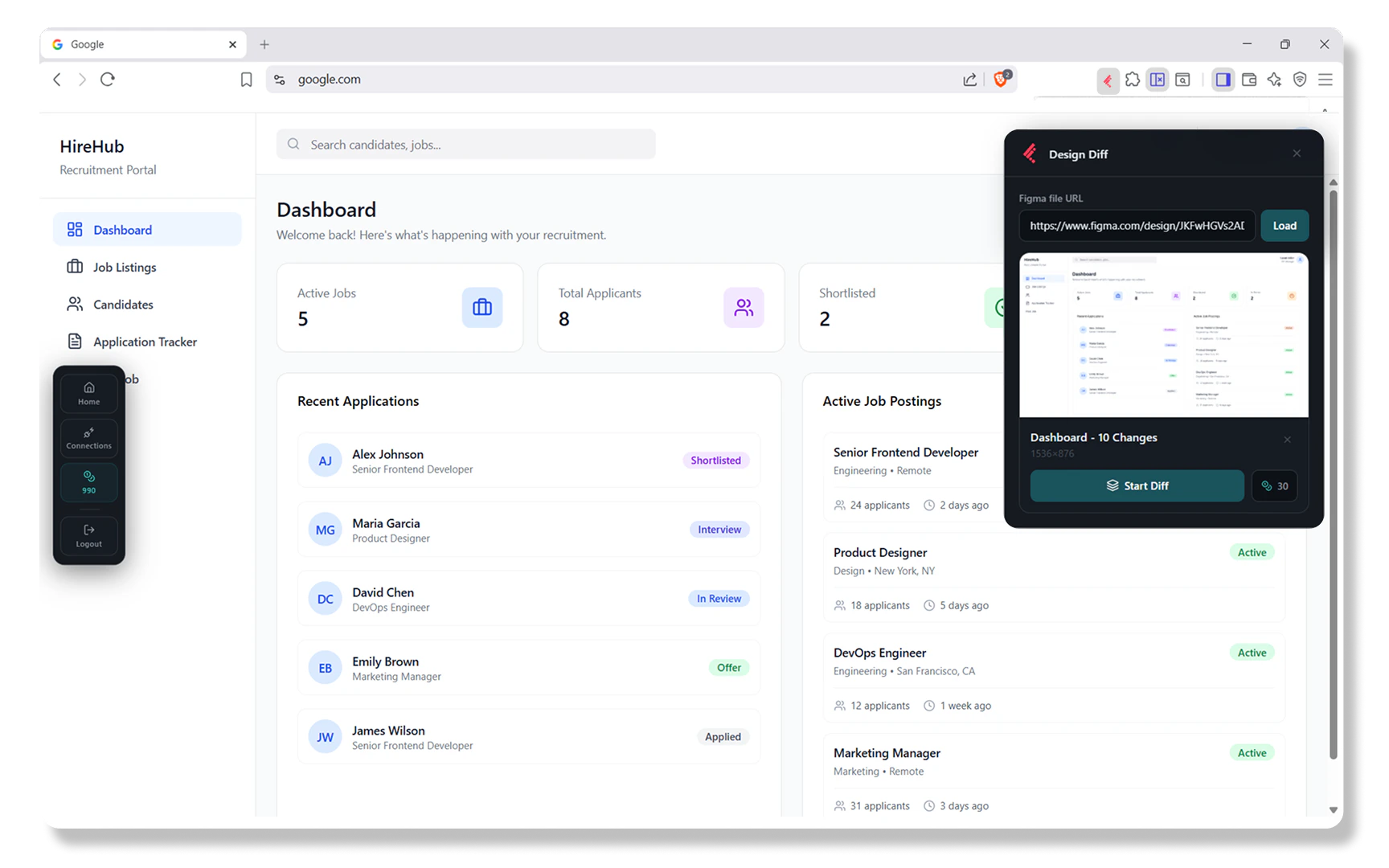 1. Navigate to your live site in Chrome
2. Click the Design Diff extension icon
3. Log in with Floto (if not already logged in)
4. Paste your Figma frame link
5. Click **Start Diff**
6. Extension compares and shows results on your page
Rate limiting applies with free Figma plan.
***
## Review Results
After running a diff, Floto overlays every visual discrepancy on your live page.
1. Navigate to your live site in Chrome
2. Click the Design Diff extension icon
3. Log in with Floto (if not already logged in)
4. Paste your Figma frame link
5. Click **Start Diff**
6. Extension compares and shows results on your page
Rate limiting applies with free Figma plan.
***
## Review Results
After running a diff, Floto overlays every visual discrepancy on your live page.
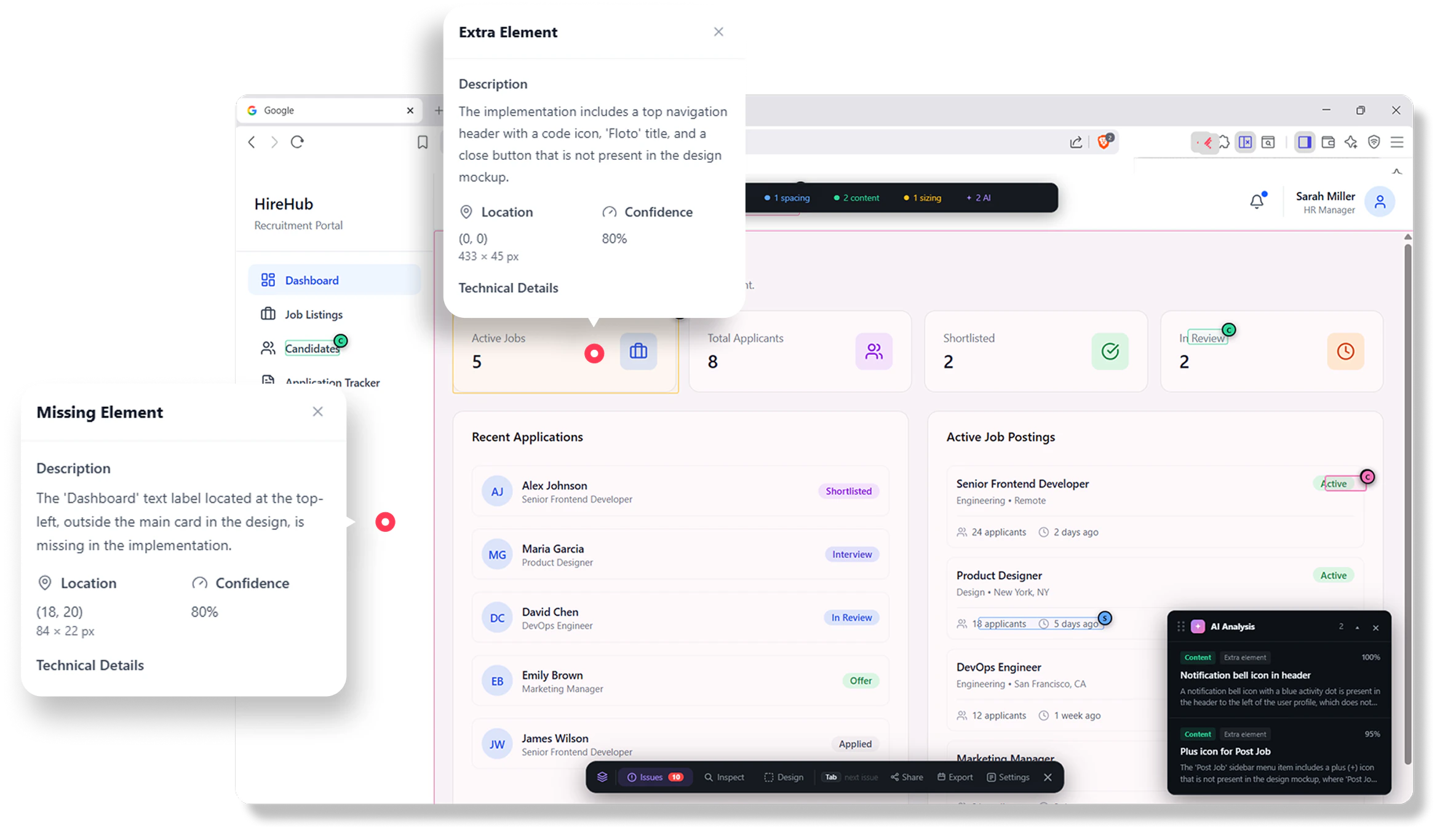 Differences are highlighted and categorized:
* **Color mismatches** - Hex values that don't match
* **Spacing issues** - Padding, margins, gaps
* **Typography problems** - Font sizes, weights, line heights
* **Sizing discrepancies** - Element dimensions
***
## Inspect Differences
Hover over highlighted elements to compare design specs vs implementation.
Differences are highlighted and categorized:
* **Color mismatches** - Hex values that don't match
* **Spacing issues** - Padding, margins, gaps
* **Typography problems** - Font sizes, weights, line heights
* **Sizing discrepancies** - Element dimensions
***
## Inspect Differences
Hover over highlighted elements to compare design specs vs implementation.
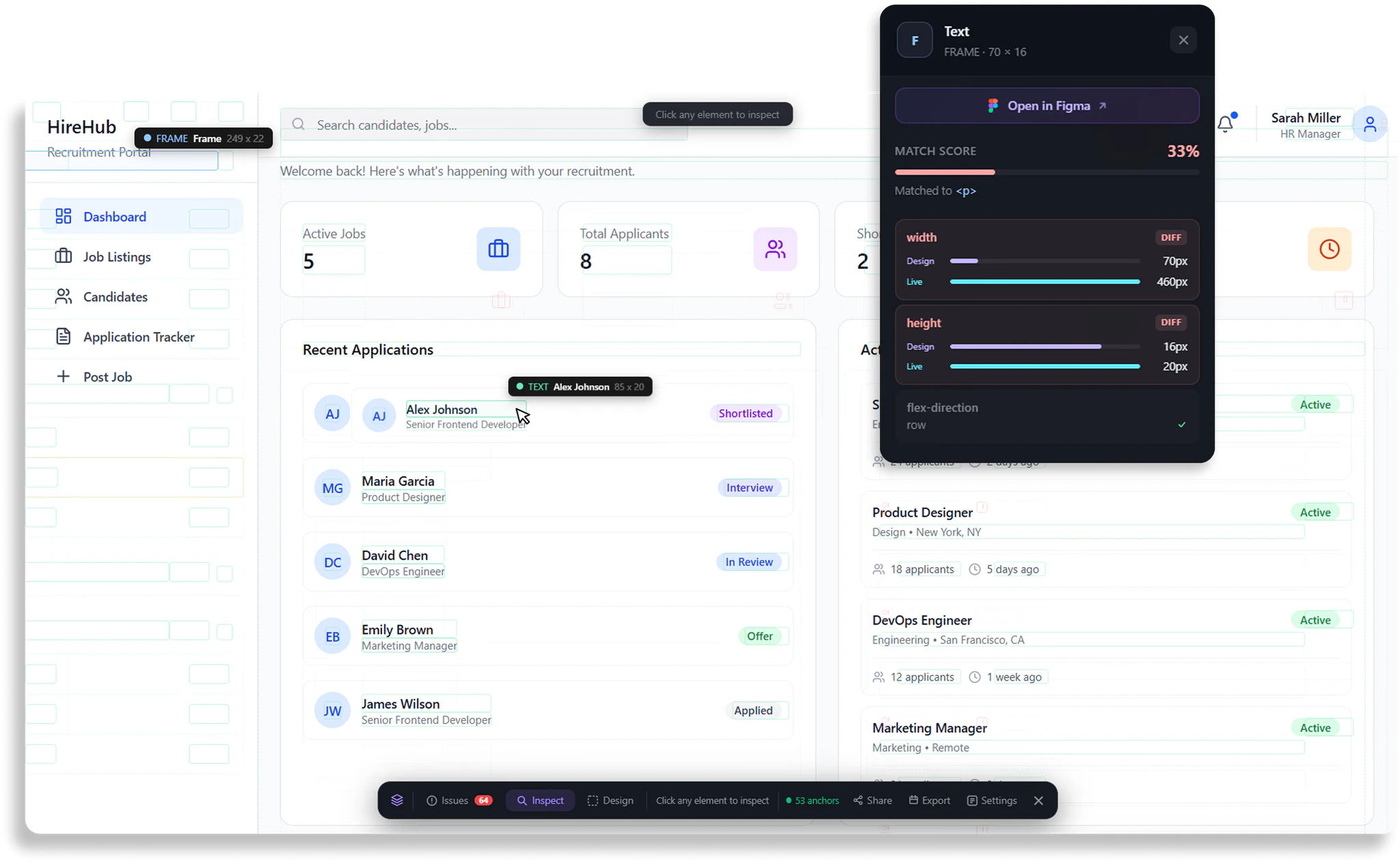 **Inspect mode** shows:
* **Figma specs** - What was designed (colors, typography, spacing, dimensions)
* **CSS values** - What's actually implemented
* **Side-by-side overlay** - Design vs implementation comparison
* **Design tokens** - Token names if you've imported your design system
Toggle between three overlay modes:
* **Wipe** - Slider view to compare before/after
* **Issues** - Highlight all detected differences with categories
* **Inspect** - Detailed hover inspection of individual elements
***
## Export Issues
Create tracking issues in Linear or Jira from detected differences.
**Inspect mode** shows:
* **Figma specs** - What was designed (colors, typography, spacing, dimensions)
* **CSS values** - What's actually implemented
* **Side-by-side overlay** - Design vs implementation comparison
* **Design tokens** - Token names if you've imported your design system
Toggle between three overlay modes:
* **Wipe** - Slider view to compare before/after
* **Issues** - Highlight all detected differences with categories
* **Inspect** - Detailed hover inspection of individual elements
***
## Export Issues
Create tracking issues in Linear or Jira from detected differences.
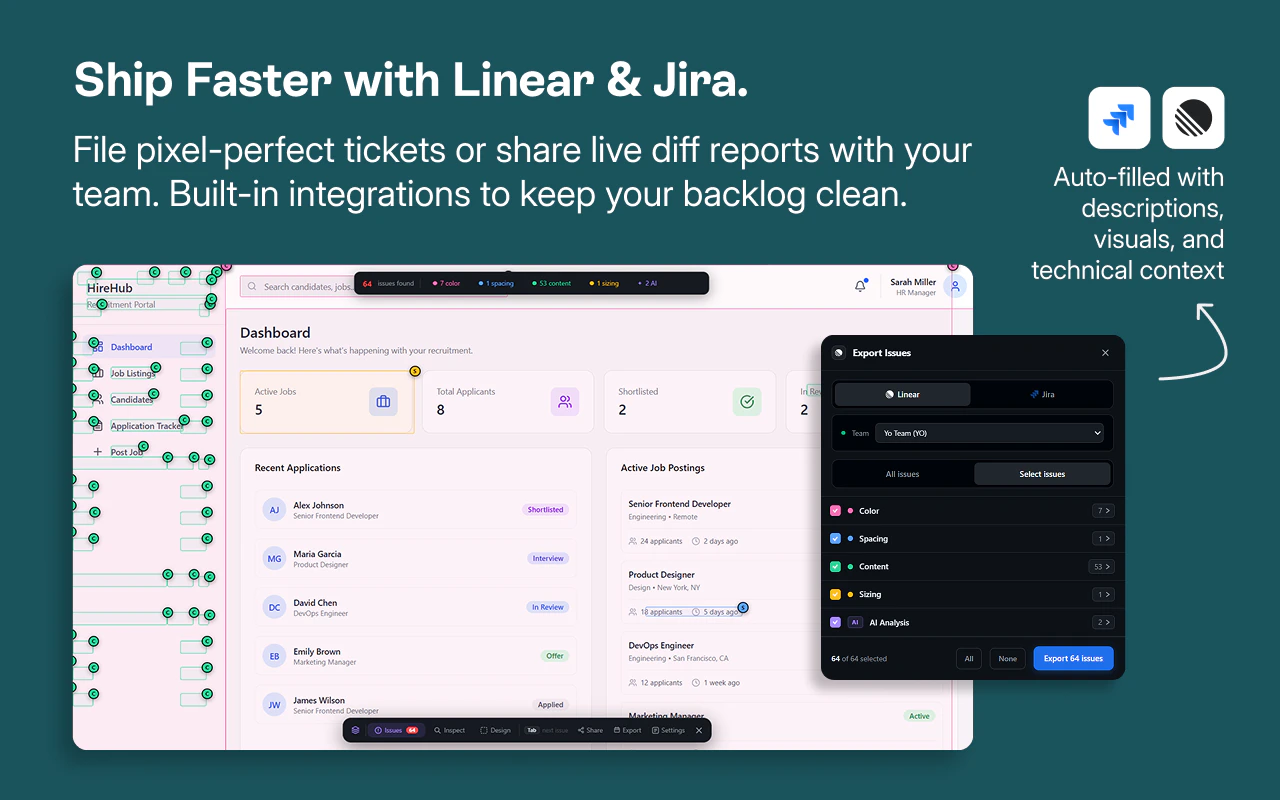 **Export to:**
* **Linear** - Create issues grouped by element or category
* **Jira** - Create issues in your Jira projects
* **Share** - Generate shareable link for team review
Issues include:
* Visual difference details (color, spacing, typography, sizing)
* Element location and context
* Design token information if available
* Screenshots from both Figma and live implementation
***
## Figma Plan Considerations
Figma API has rate limits depending on your plan:
| Plan | Rate Limit |
| --------------------------- | ------------------ |
| **Free** | 6 requests/month |
| **Professional** (Dev/Full) | 15-20 requests/min |
| **Organization/Enterprise** | Higher limits |
**Recommendation:**
* **Free Figma plan?** Use the plugin method (no rate limiting)
* **Extension only with free plan?** Rate limiting applies (6/month)
* **Figma Pro with Dev/Full access?** Both methods work fine
* **Organization+ tiers?** Both methods work well
***
## Frame Requirements
### Supported Frames
* Single Figma frames
* Screens, components, sections
* Any prototype frame
### Frame Size
* No minimum size
* No maximum size
* Supports full page screenshots
### URL Requirements
* Live site URL (must be publicly accessible)
* Full page URL (e.g., `https://myapp.com/page`)
* Must load in browser for diff to work
***
## FAQ
Yes. The extension handles the actual comparison and opens your live site to run the diff. Install once from the Chrome Web Store.
Yes, free Figma plans work fine. Use the plugin method — it doesn't have rate limiting. The Chrome extension has rate limits on free plans (6/month).
You're likely using the Chrome extension with a free Figma plan. Switch to the plugin method instead (no rate limiting), or upgrade your Figma plan to Professional with Dev/Full access.
Floto opens your live site in the extension, takes screenshots, and compares them pixel-by-pixel against your Figma frame using AI analysis.
Yes. Use inspect mode to hover over any element and see a side-by-side comparison of Figma specs vs actual CSS values. Visual differences are highlighted with categories (color, spacing, typography, sizing).
Yes. Run separate diffs for each frame you want to check. Each diff is independent.
Diff works on any publicly accessible page. If your site requires login, log in first in your browser, then run the diff.
Yes. Export detected differences to Linear or Jira as grouped issues. Issues include visual details, element location, screenshots, and design token information.
Design Diff can compare against your design token library if you've imported your Figma variable library. Specs will reflect your tokens.
Typically 1-3 minutes depending on page complexity and load time.
**Export to:**
* **Linear** - Create issues grouped by element or category
* **Jira** - Create issues in your Jira projects
* **Share** - Generate shareable link for team review
Issues include:
* Visual difference details (color, spacing, typography, sizing)
* Element location and context
* Design token information if available
* Screenshots from both Figma and live implementation
***
## Figma Plan Considerations
Figma API has rate limits depending on your plan:
| Plan | Rate Limit |
| --------------------------- | ------------------ |
| **Free** | 6 requests/month |
| **Professional** (Dev/Full) | 15-20 requests/min |
| **Organization/Enterprise** | Higher limits |
**Recommendation:**
* **Free Figma plan?** Use the plugin method (no rate limiting)
* **Extension only with free plan?** Rate limiting applies (6/month)
* **Figma Pro with Dev/Full access?** Both methods work fine
* **Organization+ tiers?** Both methods work well
***
## Frame Requirements
### Supported Frames
* Single Figma frames
* Screens, components, sections
* Any prototype frame
### Frame Size
* No minimum size
* No maximum size
* Supports full page screenshots
### URL Requirements
* Live site URL (must be publicly accessible)
* Full page URL (e.g., `https://myapp.com/page`)
* Must load in browser for diff to work
***
## FAQ
Yes. The extension handles the actual comparison and opens your live site to run the diff. Install once from the Chrome Web Store.
Yes, free Figma plans work fine. Use the plugin method — it doesn't have rate limiting. The Chrome extension has rate limits on free plans (6/month).
You're likely using the Chrome extension with a free Figma plan. Switch to the plugin method instead (no rate limiting), or upgrade your Figma plan to Professional with Dev/Full access.
Floto opens your live site in the extension, takes screenshots, and compares them pixel-by-pixel against your Figma frame using AI analysis.
Yes. Use inspect mode to hover over any element and see a side-by-side comparison of Figma specs vs actual CSS values. Visual differences are highlighted with categories (color, spacing, typography, sizing).
Yes. Run separate diffs for each frame you want to check. Each diff is independent.
Diff works on any publicly accessible page. If your site requires login, log in first in your browser, then run the diff.
Yes. Export detected differences to Linear or Jira as grouped issues. Issues include visual details, element location, screenshots, and design token information.
Design Diff can compare against your design token library if you've imported your Figma variable library. Specs will reflect your tokens.
Typically 1-3 minutes depending on page complexity and load time.